
Find the patient
The first step to enter a treatment plan is to identify the provider, payer, and patient.
-
On the Eviti Connect home page, click Enter New Treatment.
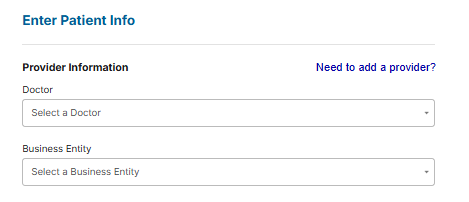
The Enter Patient Info panel appears:
-
Specify the provider, payer, and patient information, and
then click Search. Ensure that
you choose the correct provider.
- If you see multiple results, choose the correct patient.
- If this is a new patient, click New Patient to enter a new one.
The patient information appears in the right panel.
To run the search again, update the information in the Enter Patient Info panel, and then click Search.
-
Provide the remaining patient information, and then click
Save Patient and Continue.
- If we ask for a payer confirmation number, you can typically find it on the patient's insurance card. If you can't find it, call NantHealth Support at 1-888-482-8057.
- Select No from the Should this patient's name be masked? option unless the patient has VIP status or they work for the insurance company or hospital. If you select Yes, the patient's name does not appear in Eviti Connect for privacy reasons; only the patient's insurance ID appears.
-
On the next screen, do the following if required:
- Type the patient's height and weight.
- For oncology treatment plans only: Click Evidence-Based Regimens. If the patient is enrolling in a clinical trial and you have the trial ID or trial name, click Clinical Trials instead.
The next step is to find the matching regimen.